If you are using Hockey Stat Tracker and are wondering how to put a MINUS for +/- or to correct a mistake, its very simple:
Touch the button for the stat you want to change, and drag your finger downwards.
So to summarize:
1) Touch the stat to increase it
2) Touch and slide your finger 'up' to increase count (same as touch and release)
3) Touch and slide your finger 'down' to decrease the count
Friday, October 7, 2011

Friday, September 30, 2011
iPhone/iPod/iPad - CRASH PROBLEM!
If you delete an opponent team that has a game associated with it, your app will crash whenever you go in to the list of games. So, until I release an update, please do NOT delete any Opposing Teams.
I already have the fix in place and tested. I'll get it submitted to Apple in the next day or so, and it will be available probably in just over a week.
If you are experiencing this problem please contact me at the email address listed at the top of the screen. You will need to send me your database and I can manually fix it for you.
I already have the fix in place and tested. I'll get it submitted to Apple in the next day or so, and it will be available probably in just over a week.
If you are experiencing this problem please contact me at the email address listed at the top of the screen. You will need to send me your database and I can manually fix it for you.
Tuesday, May 17, 2011
Issues With Ads
In the new LITE versions that are being released (some today, some in next few days) there's an issue where an invisible ad can block the controls for changing period and such. It only happens until the first ad appears. I've fixed it, along with a crash that happens if you try to go to a team summary report with no games of that type. I will do new releases as soon as this batch is complete. So they'll be submitted probably early next week.
Friday, April 15, 2011
Error
Some people have reported that the Home/Away and Game Type lists are empty. I think this may be causing some crashes that people are seeing too. If this is happening to you, please contact me at hockeystattracker@gmail.com. I have an update that I believe will fix it - but I can't duplicate it myself to confirm.
Friday, April 8, 2011
iPad Versions Released
Well the iPad versions are finally released. I'll post some screen shots and better instructions in the next day or two. However, for now, you'll need to understand how to add Seasons, Teams, Players and Games. Its a little quirky but once you have done it a couple of times you'll be fine. The process is:
1) Hit the button in the top left corner to pick whether you are modifying Seasons, Teams or Players. This step isn't necessary in the Games screen because you are only dealing with games.
2) At the bottom of the list (always visible in landscape mode, visible by hitting the second button in the top left in portrait mode) select a Season and/or Team as appropriate.
3)To ADD an entry, hit the Edit button, then the + button that appears. Then you can type your details on the main screen. Finish by hitting save in the bottom right corner.
4) When you have finished Adding/Deleting entries, hit the Done button.
UPDATE - with the currently released version you no longer need to hit Edit then + to add entries. Simply click in the 'Add' row. This should be far more intuitive.
5) Click on any row to bring the details into the main screen for editing. Here's the annoying twist - you can't be in Edit mode to edit something. Yes, its kinda silly :) If you are in Edit mode, hit the Done button. Then you will be able to edit entries. Hit save when you're finished.
I know the workflow isn't great. I'm working on improving it but I want to get the Android versions done first plus I am finalizing a new app that tracks all of the stats just by entering shots. You'll be able to track goals, assists, shots, saves, missed shots, pipe/post shots and blocked shots - for both your team AND your opponent. It will also track the stats for the goalies. It is being beta tested this weekend at a rather large tournament in Minnesota - if all goes well I'll get it released shortly. Which app to chose really depends on the stats you want and the workflow you like.
Please contact me with any questions or suggestions.
1) Hit the button in the top left corner to pick whether you are modifying Seasons, Teams or Players. This step isn't necessary in the Games screen because you are only dealing with games.
2) At the bottom of the list (always visible in landscape mode, visible by hitting the second button in the top left in portrait mode) select a Season and/or Team as appropriate.
3)
UPDATE - with the currently released version you no longer need to hit Edit then + to add entries. Simply click in the 'Add' row. This should be far more intuitive.
5) Click on any row to bring the details into the main screen for editing. Here's the annoying twist - you can't be in Edit mode to edit something. Yes, its kinda silly :) If you are in Edit mode, hit the Done button. Then you will be able to edit entries. Hit save when you're finished.
I know the workflow isn't great. I'm working on improving it but I want to get the Android versions done first plus I am finalizing a new app that tracks all of the stats just by entering shots. You'll be able to track goals, assists, shots, saves, missed shots, pipe/post shots and blocked shots - for both your team AND your opponent. It will also track the stats for the goalies. It is being beta tested this weekend at a rather large tournament in Minnesota - if all goes well I'll get it released shortly. Which app to chose really depends on the stats you want and the workflow you like.
Please contact me with any questions or suggestions.
Monday, March 7, 2011
Reports
There are three types of reports available: Player, Game and Team. All reports are accessible by hitting the report button on the main page. Reports can be zoomed and panned using standard iPhone/iPod two finger pinch and one finger drag...
PLAYER REPORTS
Player reports simply give the season statistics for a given player. From the report page hit the Player button. You will be asked to select a Season and Team. Once this is done you will be given a list of Players. Select the player you are interested in and a report of their statistics will be generated and displayed. By hitting the compose button in the top right corner of the screen you can create an email that will have PDF and CSV attachments of the report.
 Player Report
 Emailing report with PDF and CSV attachments
GAME REPORTS
Game reports are available by hitting the Game button in the Reports page. You will be prompted to select a Season and Team and then given a list of games that team has played. Simply select the game you are interested in and the Game Summary will be generated. The summary includes:
- Goal totals per period and game with a breakdown of Goals, PP Goals and SH Goals.
- Shot totals per period and game with a breakdown of Shots and Missed Shots
- Images depicting the shots taken in each period for both your team and the opponent.
- Game statistics for all of the players on your team.

Hitting the compose button on the top right corner of the screen enables you to send a PDF of the game summary via email.
TEAM REPORTS
Team reports are available by hitting the Team button in the Reports page. You will be prompted to select a Season and Team and then given a list of Reports to choose from. There are two main report types - Team Stats and Team Record. Team Stats reports contain player statistics. Team Record reports contain the Team's win/loss record plus various other stats (GF, GA, etc).
For both Team Stats and Team Record reports you can choose how you want to look at the data:
1) Summary - gives data for the entire Season
2) Opponent - you will be prompted to choose an opponent and the report will contain data for only games against the selected opponent.
3) Home/Away - you will be prompted to choose Home or Away games and the report will contain data only for the type of game you choose.
4) Game Type - you will be prompted to choose League, Playoff, Exhibition or Tournament and the report will contain data only for that selected type of game.
Selecting the compose button in the top right corner allows you to email a PDF and a CSV file with the contents of the report.
 Team Statistics Report
 Team Record Report
PLAYER REPORTS
Player reports simply give the season statistics for a given player. From the report page hit the Player button. You will be asked to select a Season and Team. Once this is done you will be given a list of Players. Select the player you are interested in and a report of their statistics will be generated and displayed. By hitting the compose button in the top right corner of the screen you can create an email that will have PDF and CSV attachments of the report.


GAME REPORTS
Game reports are available by hitting the Game button in the Reports page. You will be prompted to select a Season and Team and then given a list of games that team has played. Simply select the game you are interested in and the Game Summary will be generated. The summary includes:
- Goal totals per period and game with a breakdown of Goals, PP Goals and SH Goals.
- Shot totals per period and game with a breakdown of Shots and Missed Shots
- Images depicting the shots taken in each period for both your team and the opponent.
- Game statistics for all of the players on your team.

Hitting the compose button on the top right corner of the screen enables you to send a PDF of the game summary via email.
TEAM REPORTS
Team reports are available by hitting the Team button in the Reports page. You will be prompted to select a Season and Team and then given a list of Reports to choose from. There are two main report types - Team Stats and Team Record. Team Stats reports contain player statistics. Team Record reports contain the Team's win/loss record plus various other stats (GF, GA, etc).
For both Team Stats and Team Record reports you can choose how you want to look at the data:
1) Summary - gives data for the entire Season
2) Opponent - you will be prompted to choose an opponent and the report will contain data for only games against the selected opponent.
3) Home/Away - you will be prompted to choose Home or Away games and the report will contain data only for the type of game you choose.
4) Game Type - you will be prompted to choose League, Playoff, Exhibition or Tournament and the report will contain data only for that selected type of game.
Selecting the compose button in the top right corner allows you to email a PDF and a CSV file with the contents of the report.


Running Games
Now we're up to the fun part. Actually tracking games...
From the main menu, hit the 'Games' button. Select a Season and then a Team. This will bring you to a list of games that this team has played. From here you can edit any of the games - you may want to do this after a game to compare the game sheet with what you entered during the course of the game. You can also add new games from here - hit the Edit button in the top right corner and then the '+' in the top left corner. You will be taken to the Add Game Screen:

Select an Opponent, choose the date/time of the game. Enter a location and then select whether its Home or Away and what type of game it is. You can do this as far in advance of the game as you want and then when it comes to game time, you can 'edit' the game. When you've finished entering the details hit 'Start Game' and you'll be taken to the shot/stat tracking page:

Now let's talk about the controls on this page:
DONE Button:
This button will take you back to the Add/Edit Game page. This will also SAVE YOUR GAME DATA. You can do this as often as you want during a game - I tend to do it at the end of each period. From the Add/Edit game page, just hit 'Start Game' again and you'll be back where you were.
Period Button:
Shots, Missed Shots and Goals are tracked and displayed per period. Changing the period by hitting this button will cause the shots for the selected period to display. You can always go back to a previous period to see/edit the shots. Support is included for 3 periods and 5 overtime periods. Only periods 1, 2 and 3, along with any overtime periods that have shots in them will be included in the reports.
Team/Opp/Stat1/Stat2 Button:
- Hitting the 'Team' button will let you enter your team's shot for the current period
- Hitting the 'Opp' button will let you enter your opponents shots for the current period
- Hitting the 'Stat1' or 'Stat2' button allows entry of individual player statistics. Note that the Stat2 button will not be visible unless you are tracking MORE than 7 statistics (See the Statistics configuration in another post).
TRACKING SHOTS:
Hitting either the 'Team' or 'Opp' button allows you to add/edit shots. Shots are added as follows:
1) Tap the screen anywhere to add a shot on net.
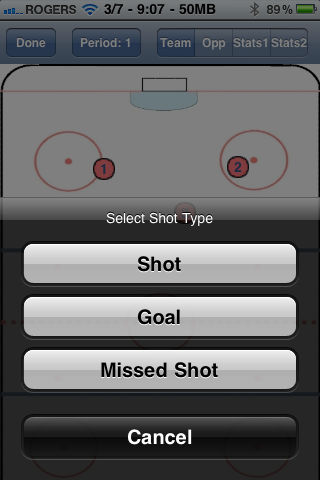
2) Tap and hold on the screen and a menu will appear to specify the shot type: Shot, Goal or Missed Shot. If you select 'Goal' a second menu will appear so you can choose whether its an even strength, power play or short handed goal.
3) Tap an existing shot to change its type. Renumbering of the shots will be handled automatically.
4) Tap and drag an existing shot to move it to a new location.
Legend:
A red circle is a shot
A blue circle is a missed shot
A green square is an even strength goal
A green square with a 'cut' in the bottom left corner is a power play goal
A green square with a 'cut' in the bottom right corner is a short handed goal
 Hold down on the screen and get a menu to select shot type
 If you are adding a goal, select the type
 Click an existing shot/goal/missed shot and get a menu where you can change the type
 Screen shot showing two shots, a missed shot and an even strength goal
TRACKING STATS
Hitting the 'Stat1' or 'Stat2' button brings you to the stat tracking page. On these pages you will see the stats you are tracking across the top and the player numbers down the left side.
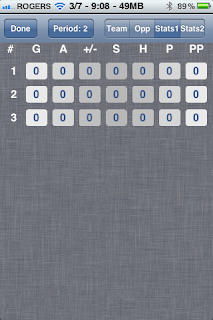 Stat1 Page - note that 1, 2 and 3 are the player numbers
 Clicking on a player's number disables the fields and marks them as 'Did Not Play' for this game.
 Stat2 page with player '3' not playing.
ENTERING STATS
Entering data on the stats page is very easy. To increase a value just touch it. For example, if player 2 gets a goal, just touch the button under the 'G' column and it will change from '0' to '1'.
If you make a mistake and need to decrease a number, or if you're entering a negative +/- value, simply touch the button and without releasing, drag your finger towards the bottom of the screen. When you let go the number will decrease by 1.
If you wish you can touch and drag towards the top of the screen to increment the number - however that's no different than just tapping the button which seems much easier to me...
 Added goal to player 2 and made them -1 in plus minus.
NOTE: Shots/Goals/etc in the Stats pages are NOT attached to the shots/goals/etc in the shots view. There is no checking to make sure the number of goals you add in the shots adds up to the number of goals you add in the stats. I'll look at doing that in the future, especially in the iPad version where everything should be on the same page. The reason I did it this way now was to make it easier to track shots and such during the game, and then go back and add the statistics when you have the game sheet. Alternatively you could have two people using this app - one doing shots, and one doing stats. At the end of the game you could transcribe the stats.
Also note that Stats are NOT tracked per period, so the Period button has no impact on these pages.
When the game is over, hit the Done button and your game data will be saved.
From the main menu, hit the 'Games' button. Select a Season and then a Team. This will bring you to a list of games that this team has played. From here you can edit any of the games - you may want to do this after a game to compare the game sheet with what you entered during the course of the game. You can also add new games from here - hit the Edit button in the top right corner and then the '+' in the top left corner. You will be taken to the Add Game Screen:

Select an Opponent, choose the date/time of the game. Enter a location and then select whether its Home or Away and what type of game it is. You can do this as far in advance of the game as you want and then when it comes to game time, you can 'edit' the game. When you've finished entering the details hit 'Start Game' and you'll be taken to the shot/stat tracking page:

Now let's talk about the controls on this page:
DONE Button:
This button will take you back to the Add/Edit Game page. This will also SAVE YOUR GAME DATA. You can do this as often as you want during a game - I tend to do it at the end of each period. From the Add/Edit game page, just hit 'Start Game' again and you'll be back where you were.
Period Button:
Shots, Missed Shots and Goals are tracked and displayed per period. Changing the period by hitting this button will cause the shots for the selected period to display. You can always go back to a previous period to see/edit the shots. Support is included for 3 periods and 5 overtime periods. Only periods 1, 2 and 3, along with any overtime periods that have shots in them will be included in the reports.
Team/Opp/Stat1/Stat2 Button:
- Hitting the 'Team' button will let you enter your team's shot for the current period
- Hitting the 'Opp' button will let you enter your opponents shots for the current period
- Hitting the 'Stat1' or 'Stat2' button allows entry of individual player statistics. Note that the Stat2 button will not be visible unless you are tracking MORE than 7 statistics (See the Statistics configuration in another post).
TRACKING SHOTS:
Hitting either the 'Team' or 'Opp' button allows you to add/edit shots. Shots are added as follows:
1) Tap the screen anywhere to add a shot on net.
2) Tap and hold on the screen and a menu will appear to specify the shot type: Shot, Goal or Missed Shot. If you select 'Goal' a second menu will appear so you can choose whether its an even strength, power play or short handed goal.
3) Tap an existing shot to change its type. Renumbering of the shots will be handled automatically.
4) Tap and drag an existing shot to move it to a new location.
Legend:
A red circle is a shot
A blue circle is a missed shot
A green square is an even strength goal
A green square with a 'cut' in the bottom left corner is a power play goal
A green square with a 'cut' in the bottom right corner is a short handed goal


TRACKING STATS
Hitting the 'Stat1' or 'Stat2' button brings you to the stat tracking page. On these pages you will see the stats you are tracking across the top and the player numbers down the left side.


ENTERING STATS
Entering data on the stats page is very easy. To increase a value just touch it. For example, if player 2 gets a goal, just touch the button under the 'G' column and it will change from '0' to '1'.
If you make a mistake and need to decrease a number, or if you're entering a negative +/- value, simply touch the button and without releasing, drag your finger towards the bottom of the screen. When you let go the number will decrease by 1.
If you wish you can touch and drag towards the top of the screen to increment the number - however that's no different than just tapping the button which seems much easier to me...

NOTE: Shots/Goals/etc in the Stats pages are NOT attached to the shots/goals/etc in the shots view. There is no checking to make sure the number of goals you add in the shots adds up to the number of goals you add in the stats. I'll look at doing that in the future, especially in the iPad version where everything should be on the same page. The reason I did it this way now was to make it easier to track shots and such during the game, and then go back and add the statistics when you have the game sheet. Alternatively you could have two people using this app - one doing shots, and one doing stats. At the end of the game you could transcribe the stats.
Also note that Stats are NOT tracked per period, so the Period button has no impact on these pages.
When the game is over, hit the Done button and your game data will be saved.
Subscribe to:
Posts (Atom)